
How To Open Your Downloaded Files
After you download a Graphiqly file, it usually comes as a compressed file. You need to extract it first. After that, you will see the design formats inside.
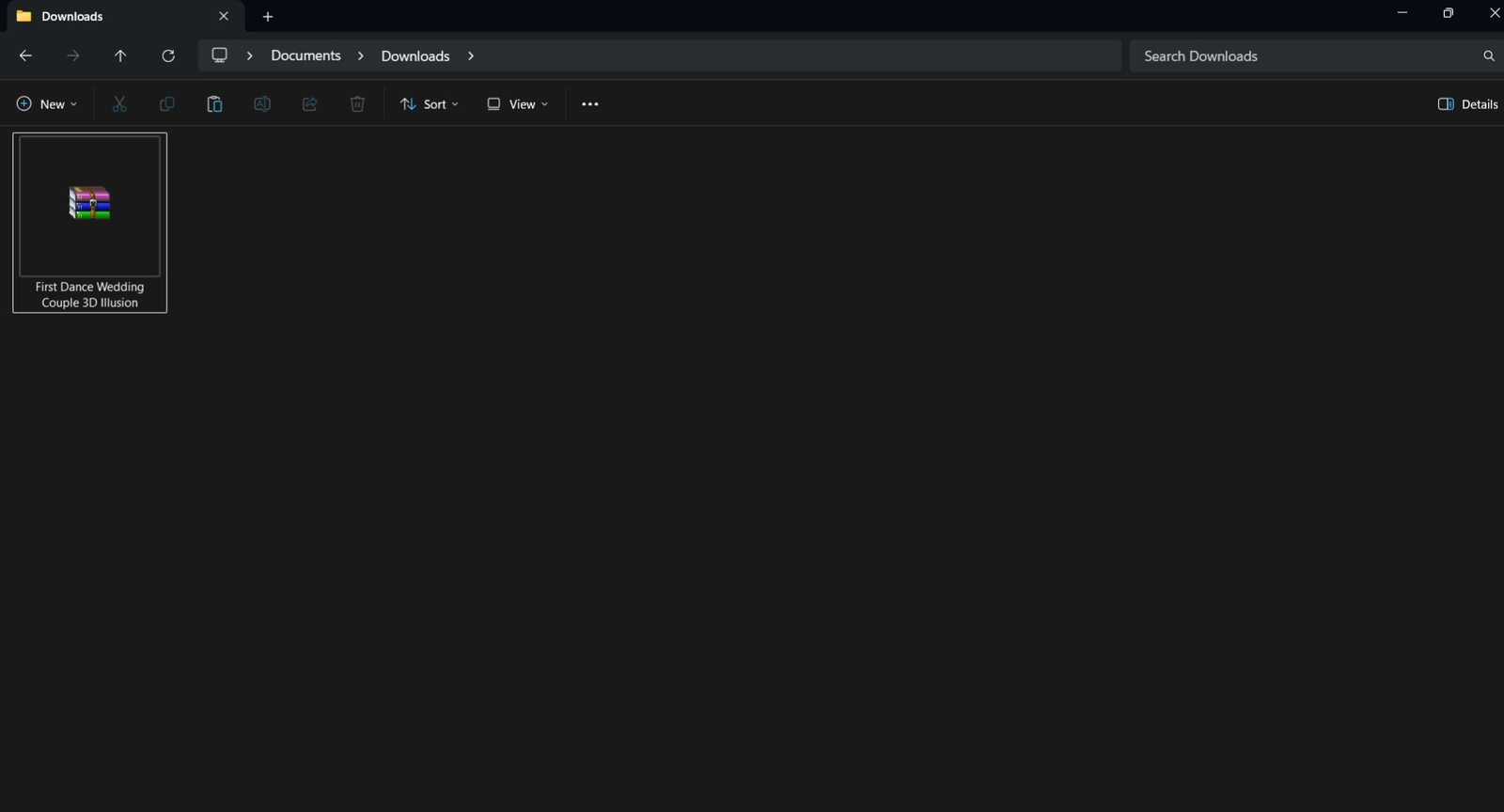
Find the file you downloaded
Go to your Downloads folder. The file you downloaded will usually look like a compressed file.
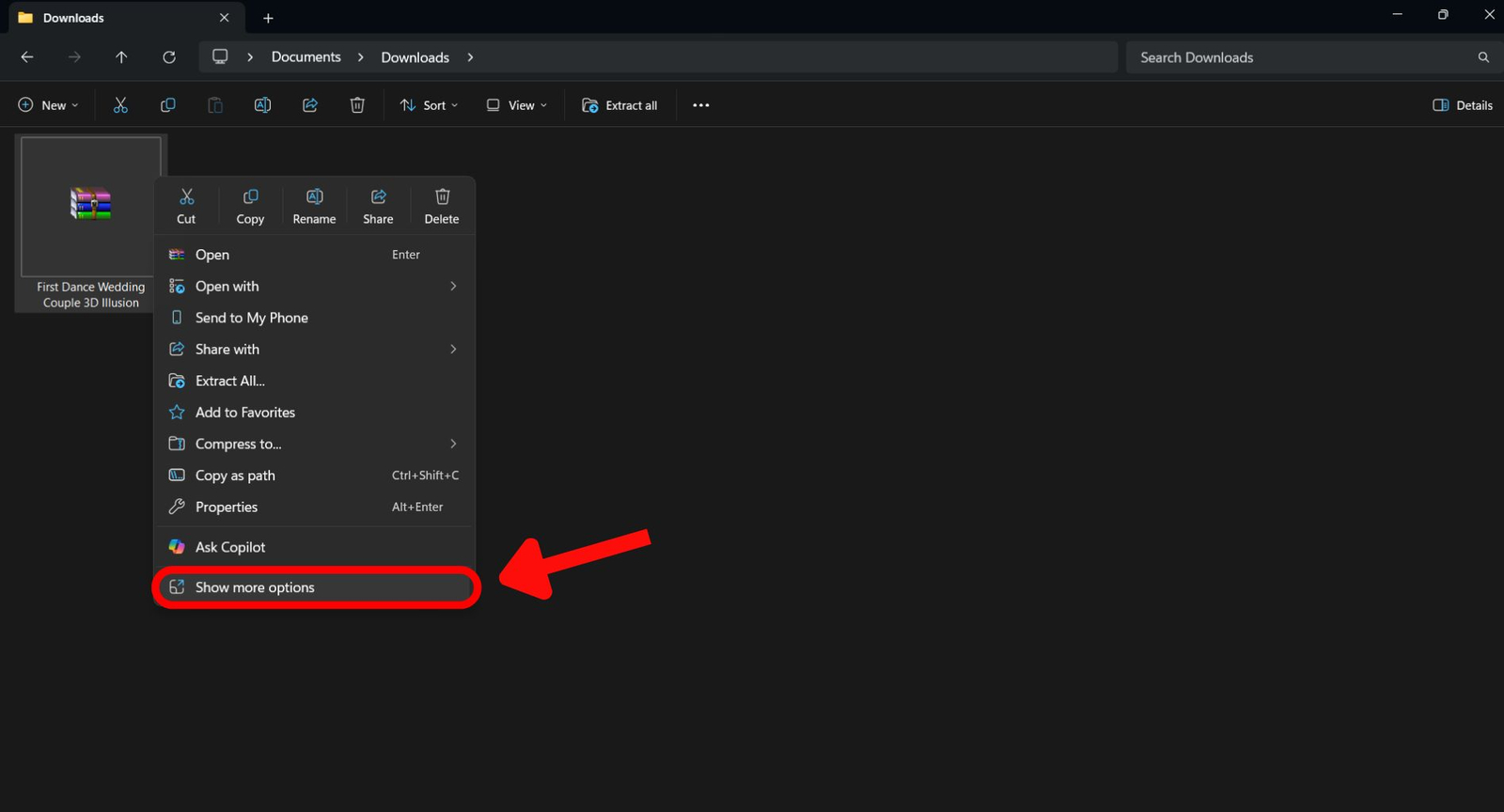
Right click the file
Right click the downloaded file. On Windows 11, you may need to click Show more options to see the extraction options.
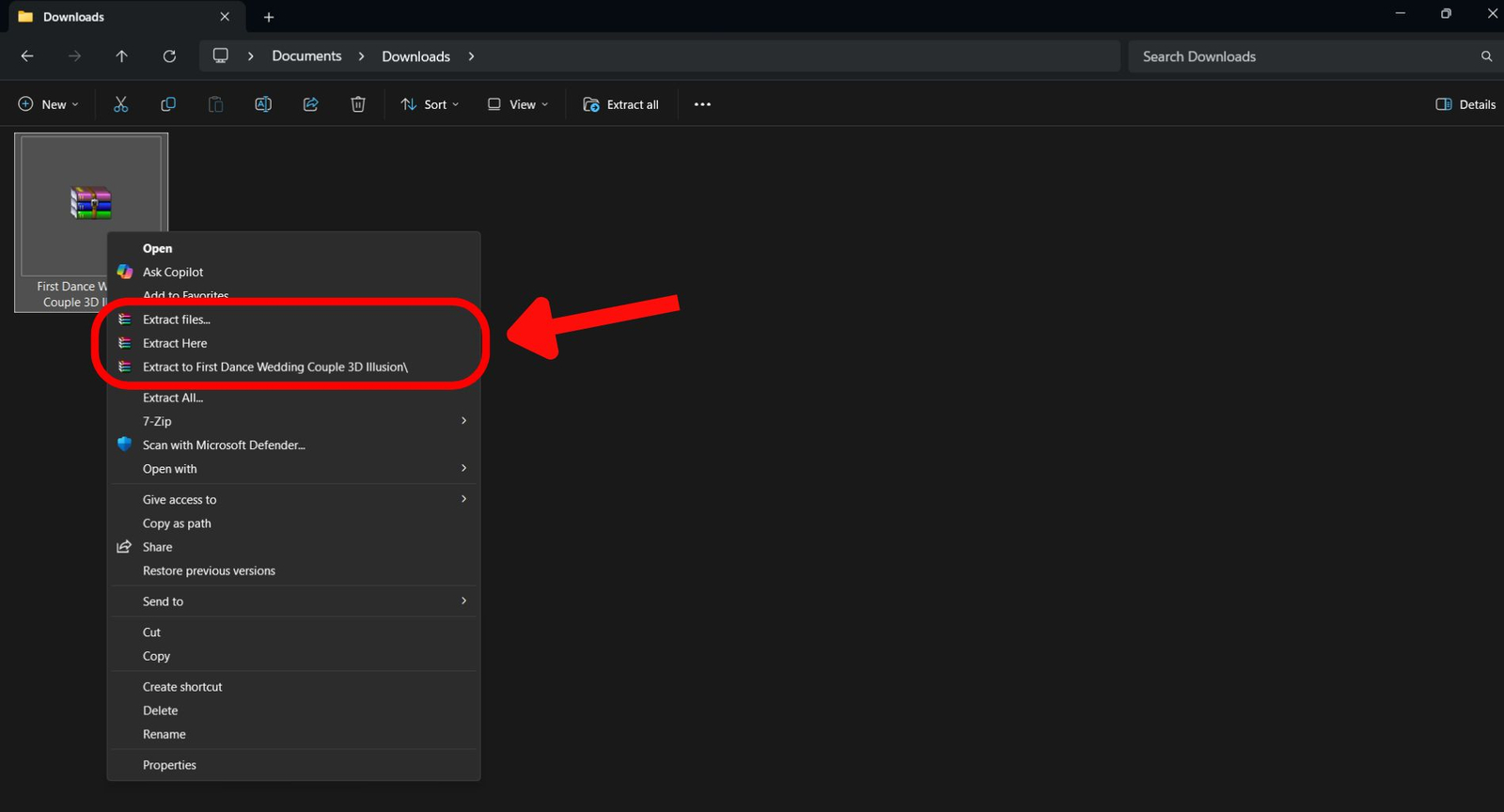
Choose an extract option
You may see a few extract options. Any of them can work, but the cleanest option is usually Extract to folder name. This creates a new folder and keeps everything organized.
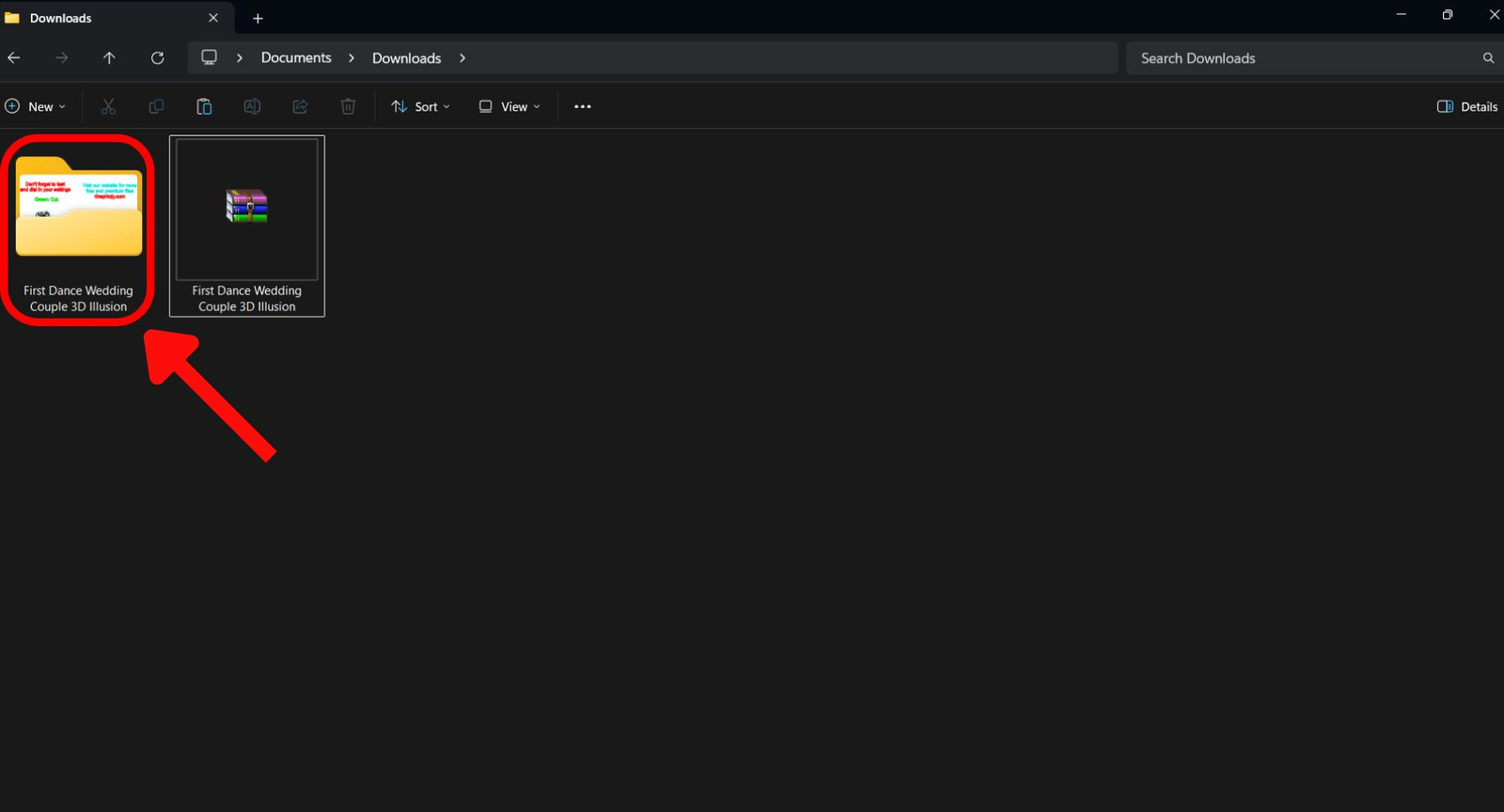
Open the new folder
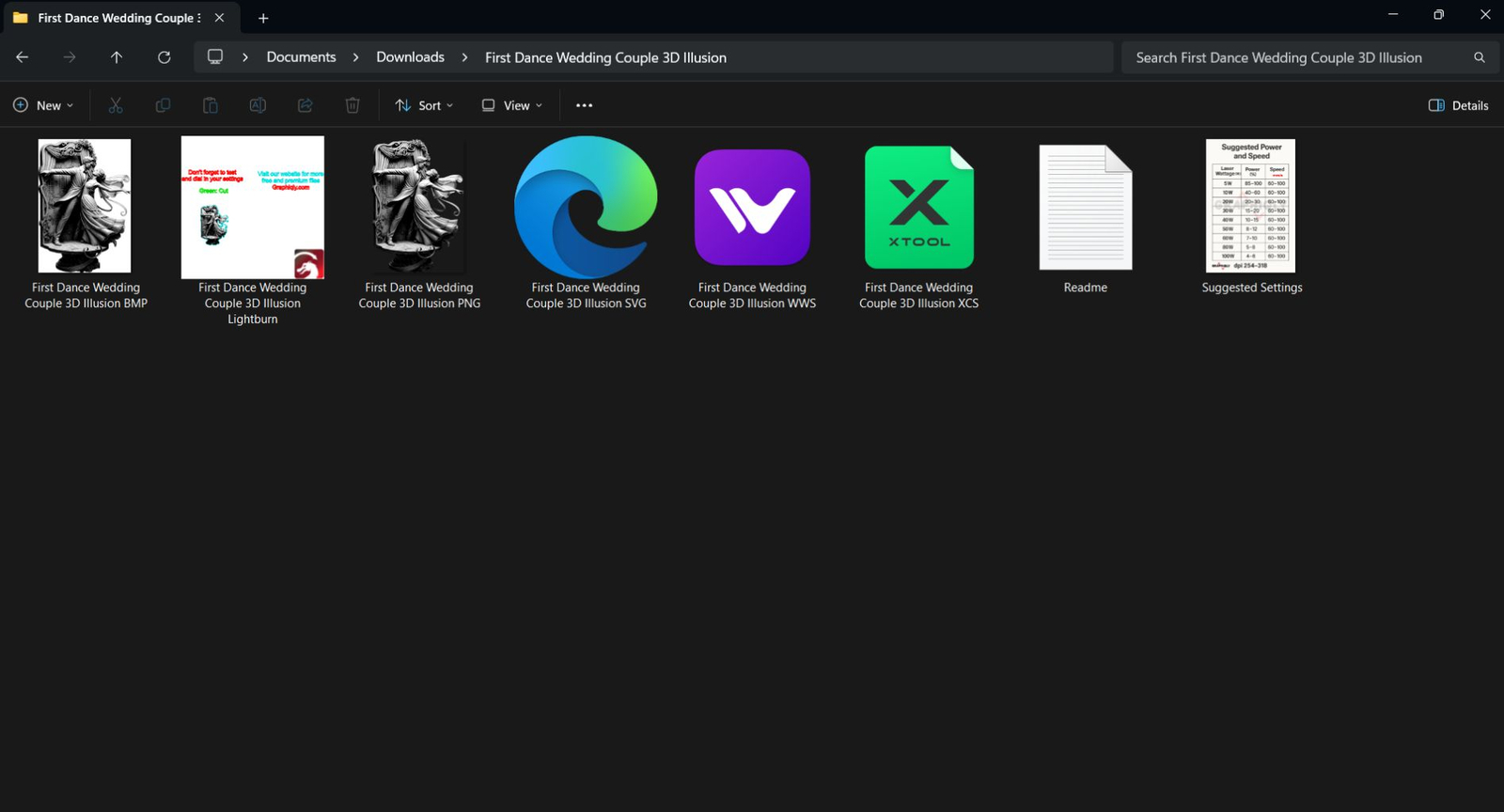
After extraction, you will see a new folder next to the compressed file. Open that folder. This is where your ready to engrave files are.
Choose the file format you need
Inside the folder, you will see different file formats. Each format is made for a different laser software.
Need help with your software?
After extracting the file, use the guide that matches your laser software for a more specific step-by-step setup.
Use this guide if you want to open the LBRN2 file, watch a quick video walkthrough, and check your engrave and cut settings before starting.
- Open the LBRN2 file
- Watch the video walkthrough
- Review engrave and cut settings
Use this guide if you want to open the XCS file, check Jarvis / engraving settings, and confirm the cut layer before processing.
- Open the XCS file
- Check engraving settings
- Review the cut layer
Use this guide if you want to open the WWS file, check the layer panel, and review Cut and Bitmap Engrave settings.
- Open the WWS file
- Check the cut layer
- Check Bitmap Engrave
Need to download your files again?
You can go back to your account downloads anytime and download your purchased files again.
Common Questions
Why can’t I open the file in LightBurn or another laser software?
You may be trying to open the compressed file. Extract it first, then open the correct file format from the extracted folder.
Which file should I use for LightBurn?
Use the LBRN2 file if it is included. That file is made for LightBurn. For a detailed walkthrough with video, follow the LightBurn guide.
Which file should I use for xTool Studio?
Use the XCS file if it is included. For a detailed walkthrough, follow the xTool Studio guide.
Which file should I use for WeCreat MakeIt?
Use the WWS file if it is included. For a detailed walkthrough, follow the WeCreat MakeIt guide.
Which file should I use if my software is not listed?
Use the SVG file. SVG is the best option for most other laser software.
Can I use the PNG file?
Yes. Use the PNG file if you only want to engrave the main image without using the full prepared layout.
Can I use the suggested settings exactly?
Use them as a starting point only. Different machines and materials need different settings, so always test first.
Still need help?
If you cannot extract the file or you are not sure which format to use, contact Graphiqly support. Include your order email and tell us which laser software you are using.
Support email: support@graphiqly.com