
How To Use Credits
Credits let you get individual Graphiqly designs without paying for each one separately at checkout. Pick a design, add it to your cart, place the order, and download your file.
Log in to your account
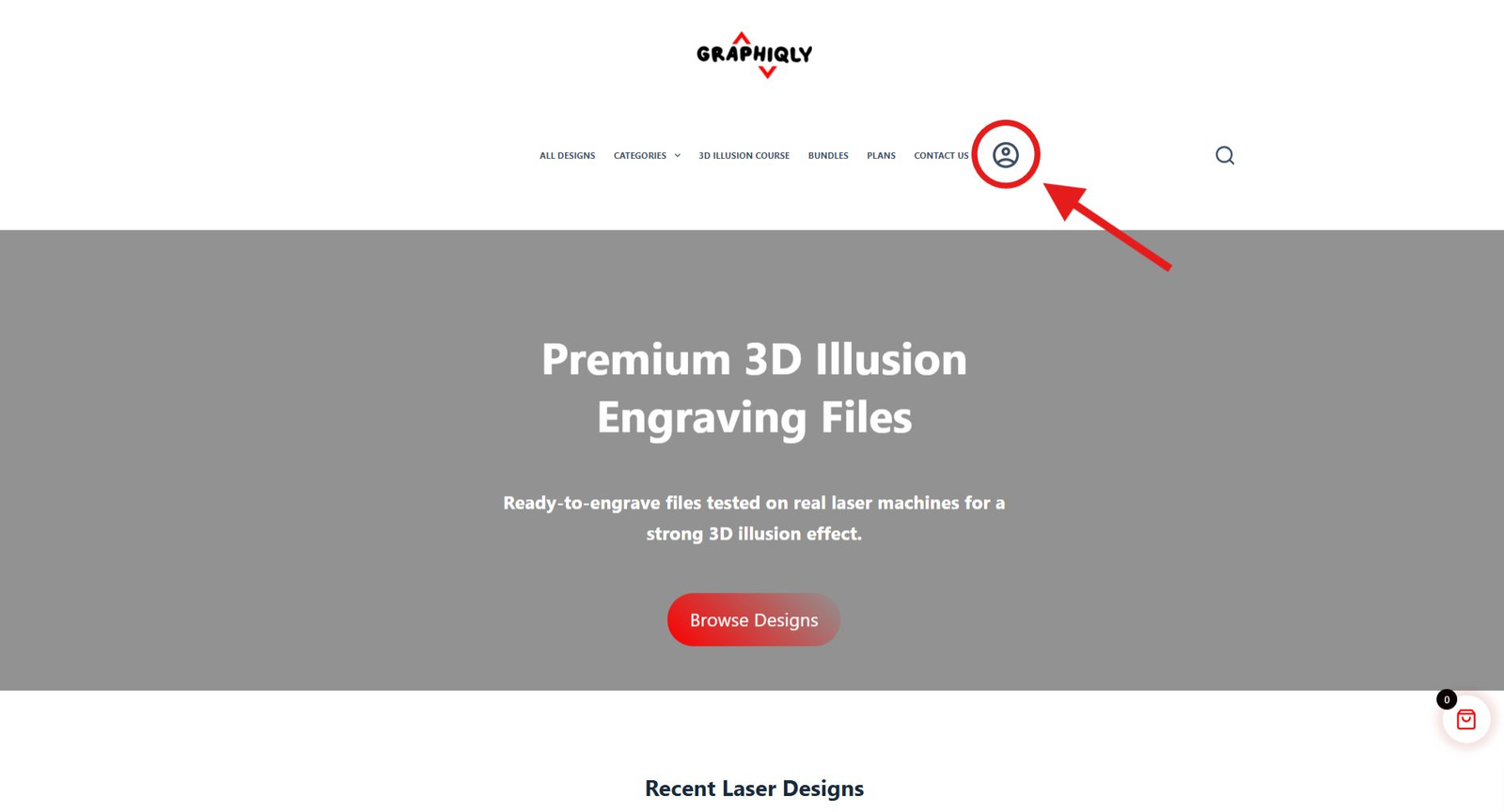
First, click the account icon at the top of the website. This opens the login window.
Use the right email
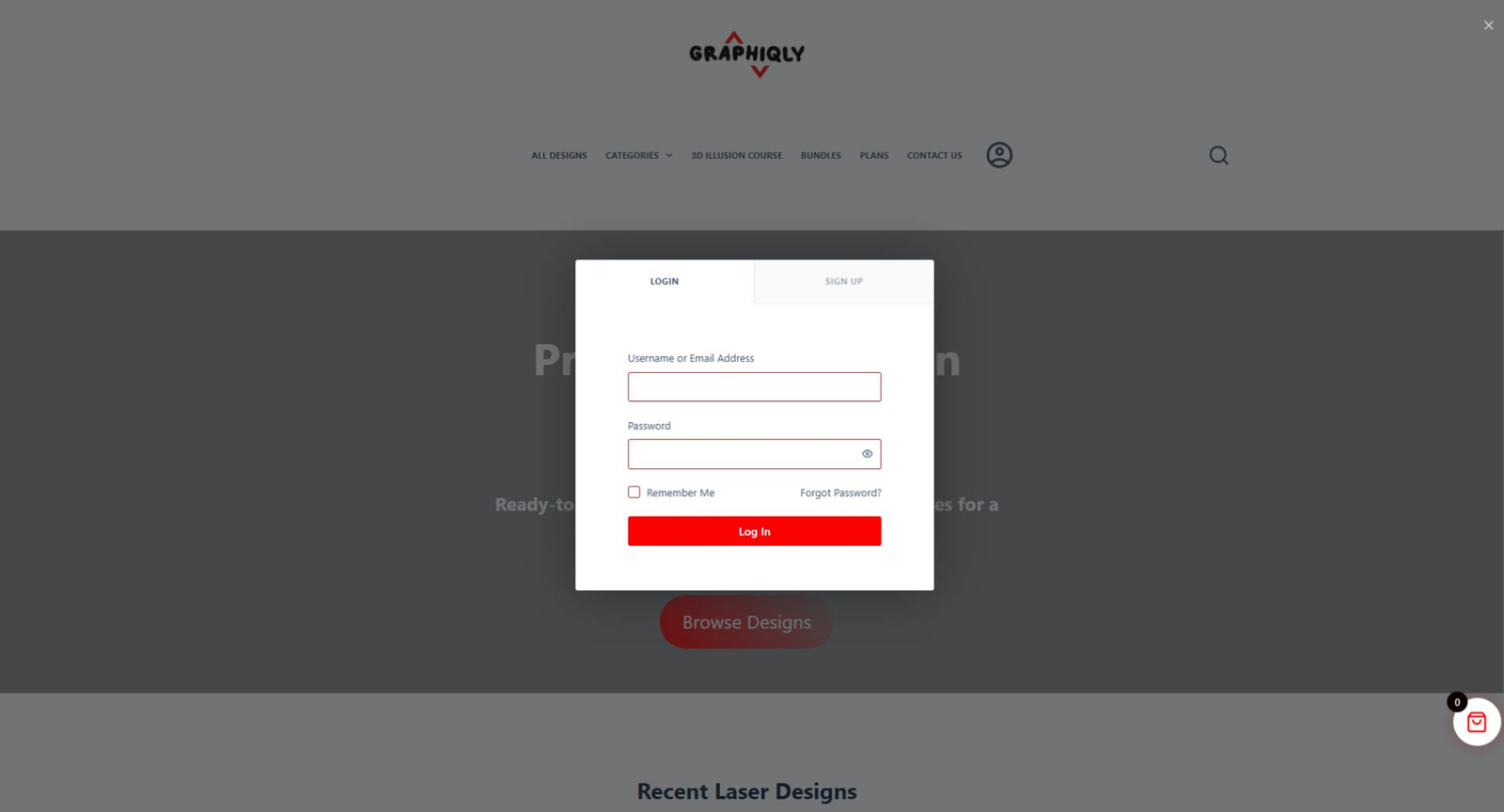
Log in with the account that has your credits. If you need to create an account, use the same email you used for your order or plan.
Check your credit balance
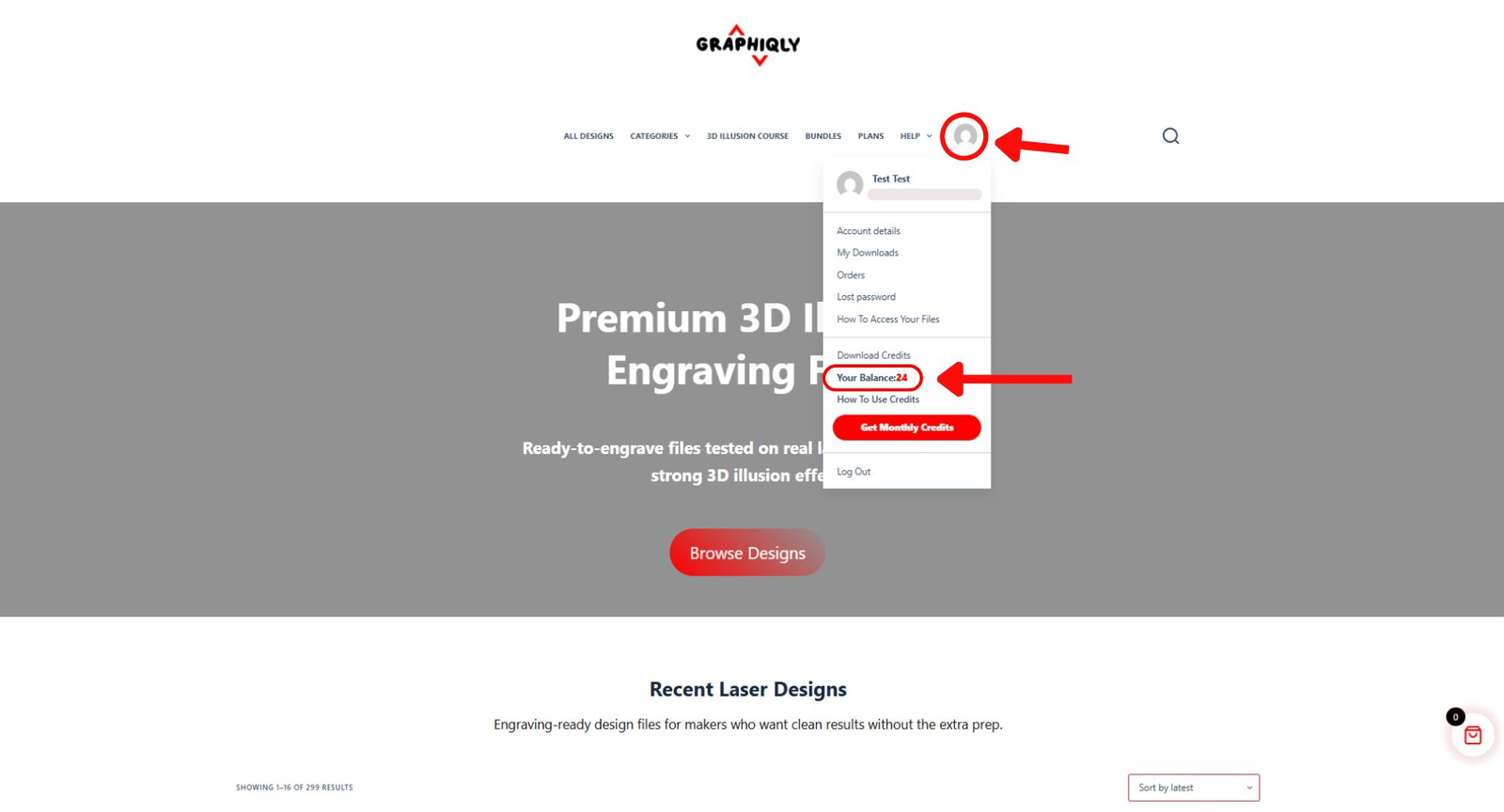
After you log in, hover over the account icon. Your credit balance will appear in the account menu.
Go to All Designs
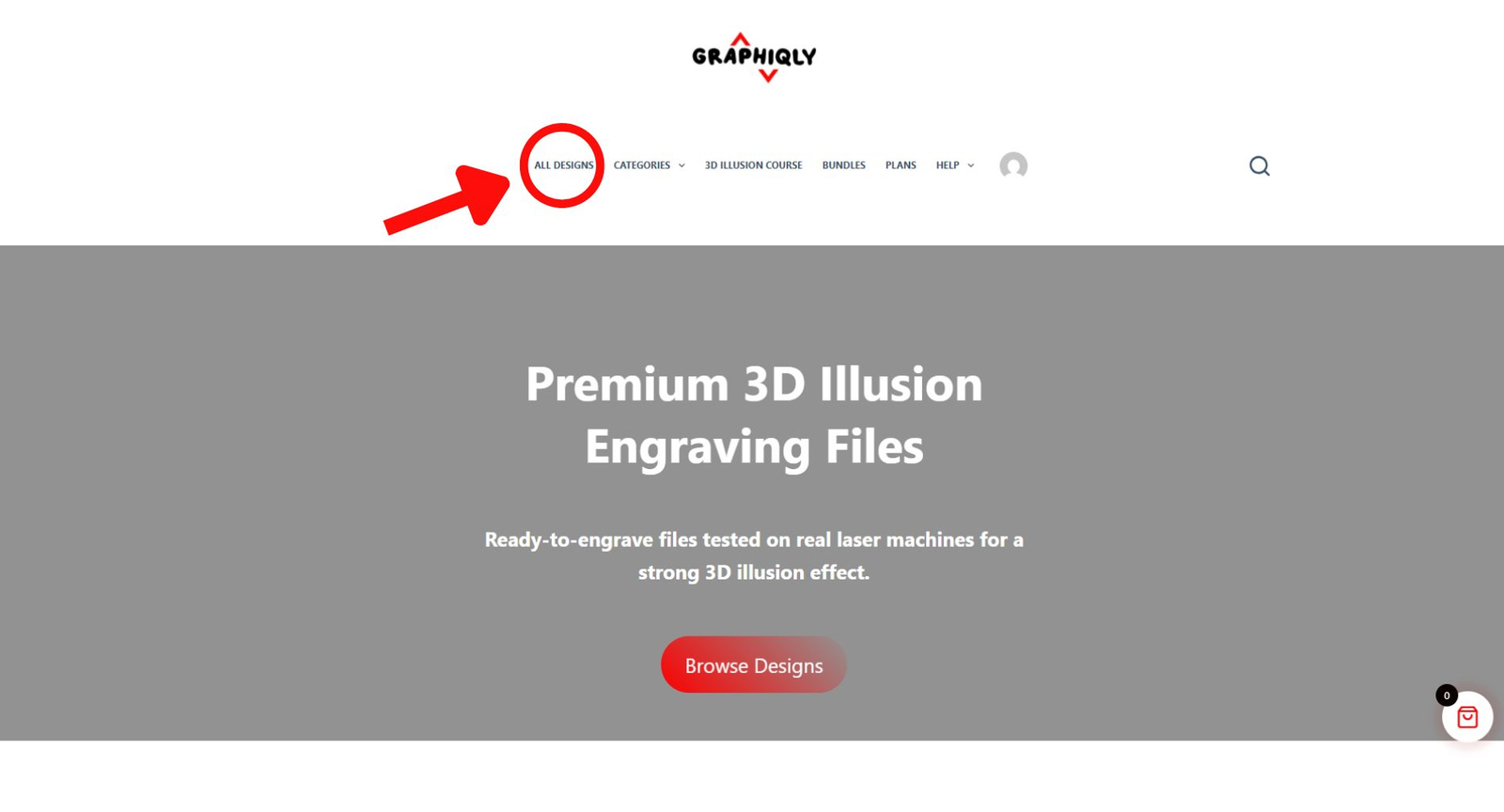
Click All Designs from the menu. Choose any individual design you want from the store.
Add a design to your cart
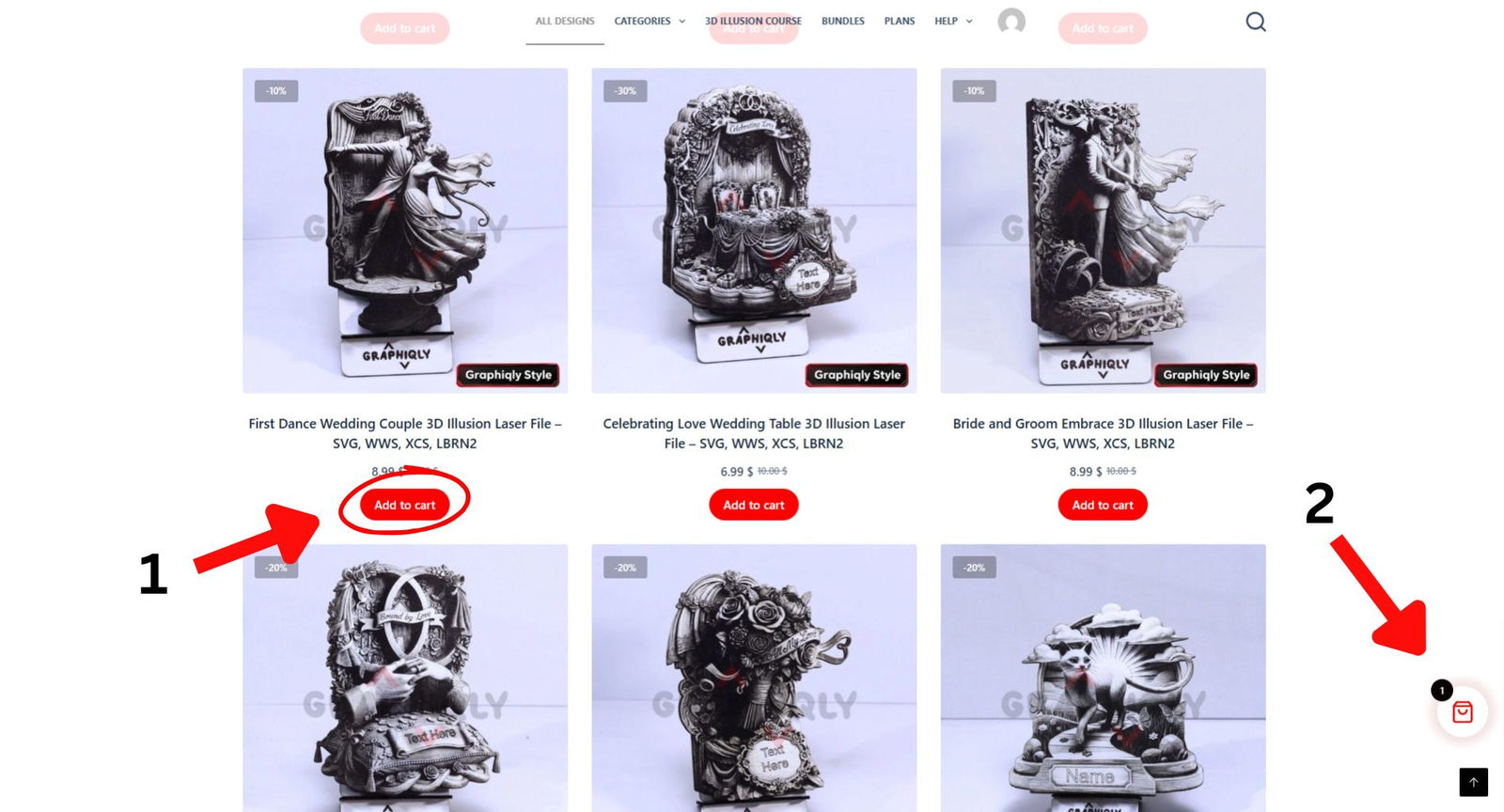
Click the Add to cart button under the design you want. The cart icon will show that the design was added.
Open the cart and go to checkout
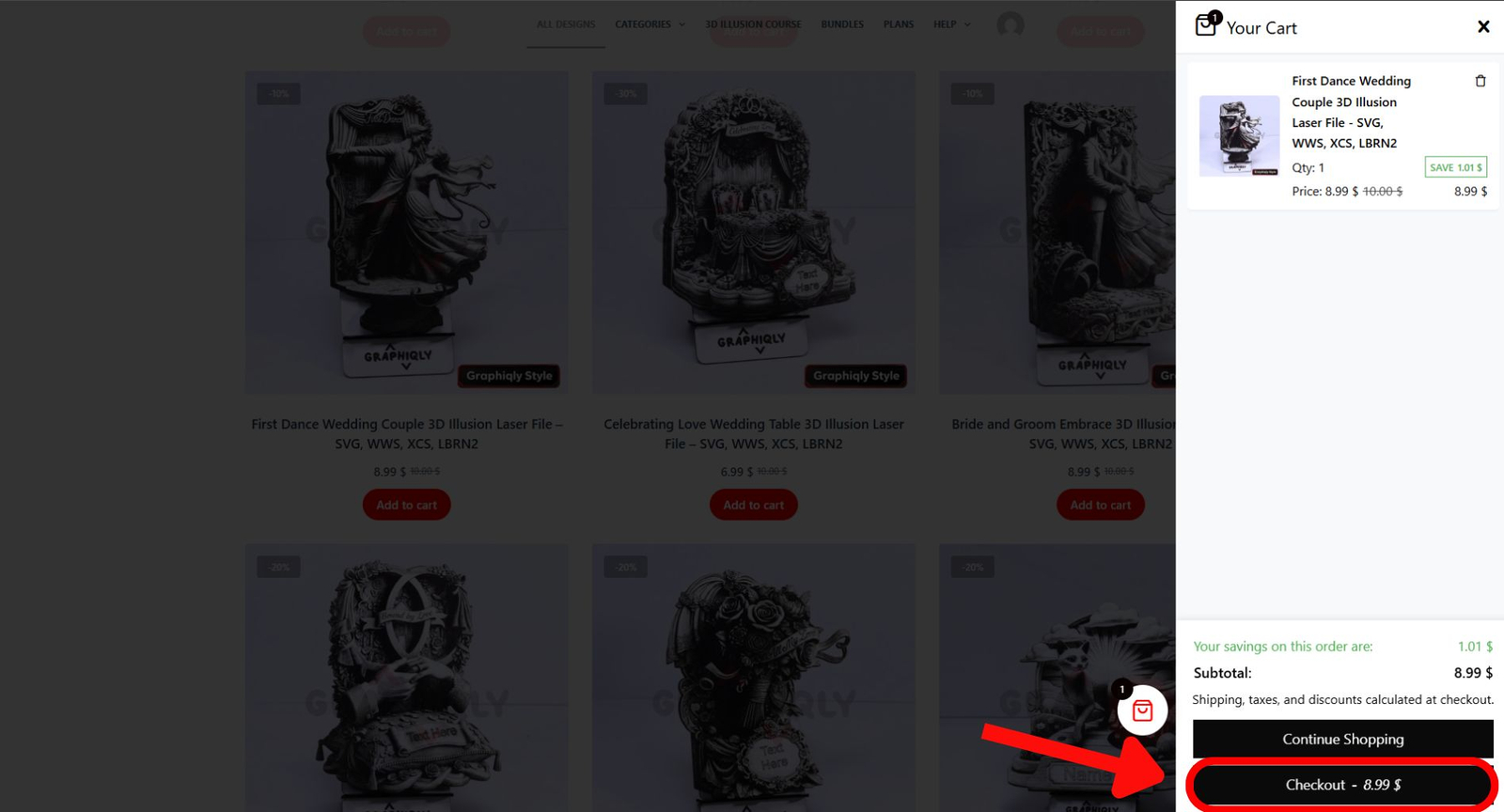
Click the cart icon. When the cart opens, click the Checkout button.
Place the order with credits
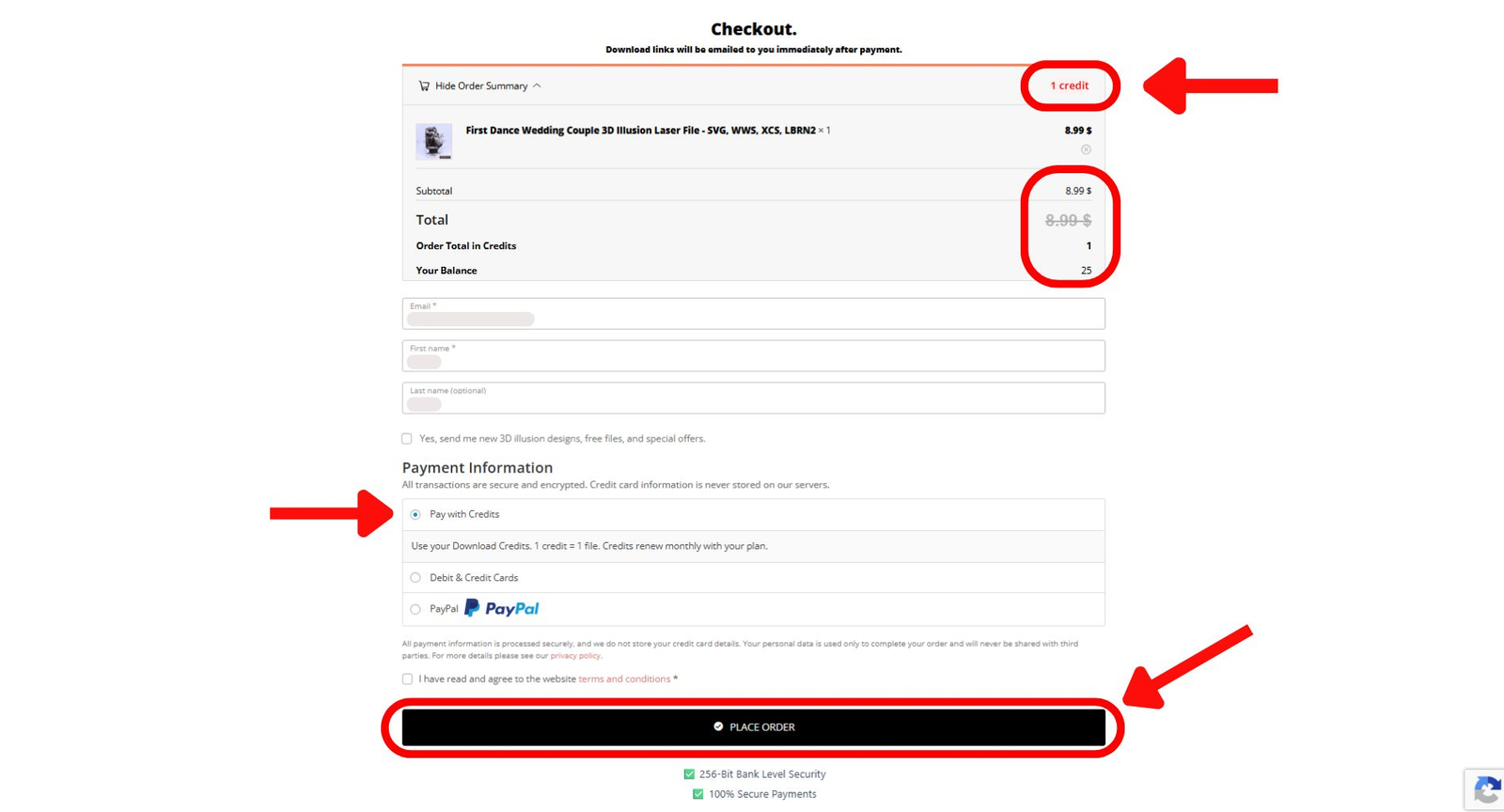
If your account has credits, Pay with Credits will already be chosen. Check the order total in credits, fill in the required details, agree to the terms, and click Place Order.
Download your file
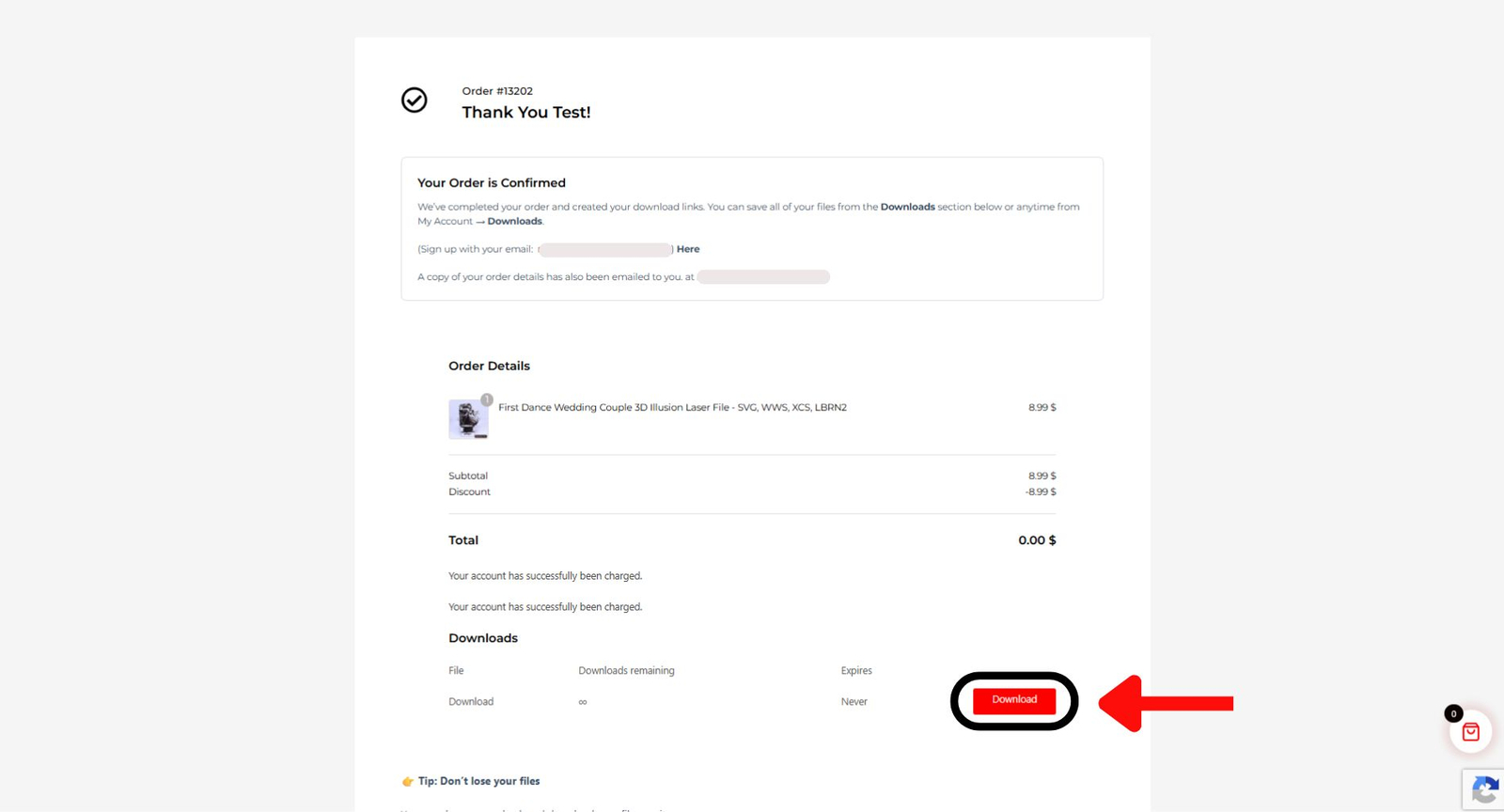
After the order is complete, click the Download button on the order confirmation page. Your download link will also be available from your account.
Need more credits?
Graphiqly plans give you monthly credits that can be used on individual designs in the store. More credits means more designs you can download.
Common Questions
What is 1 credit?
1 credit gets you 1 individual design. Credits can be used on all individual designs in the store.
Do I need to choose Pay with Credits?
No. If your account has credits, Pay with Credits will already be selected at checkout.
Why do I not see credits at checkout?
Make sure you are logged in to the account that has credits. Also make sure the product in your cart is an individual design.
Can I download the design again later?
Yes. Your file stays in your account downloads. You can go back to My Account → Downloads anytime.
Where do I get more credits?
Credits come from Graphiqly plans. You can visit the Plans page to choose the plan that fits how many designs you want each month.
Still need help?
If your credits are not showing or your order does not work correctly, contact Graphiqly support. Include the email address on your account so your credits can be checked faster.
Support email: support@graphiqly.com