How To Open Graphiqly Files in WeCreat MakeIt
This guide shows you how to extract your downloaded Graphiqly file, open the WWS file in WeCreat MakeIt, and check the cut and engraving layers before starting.
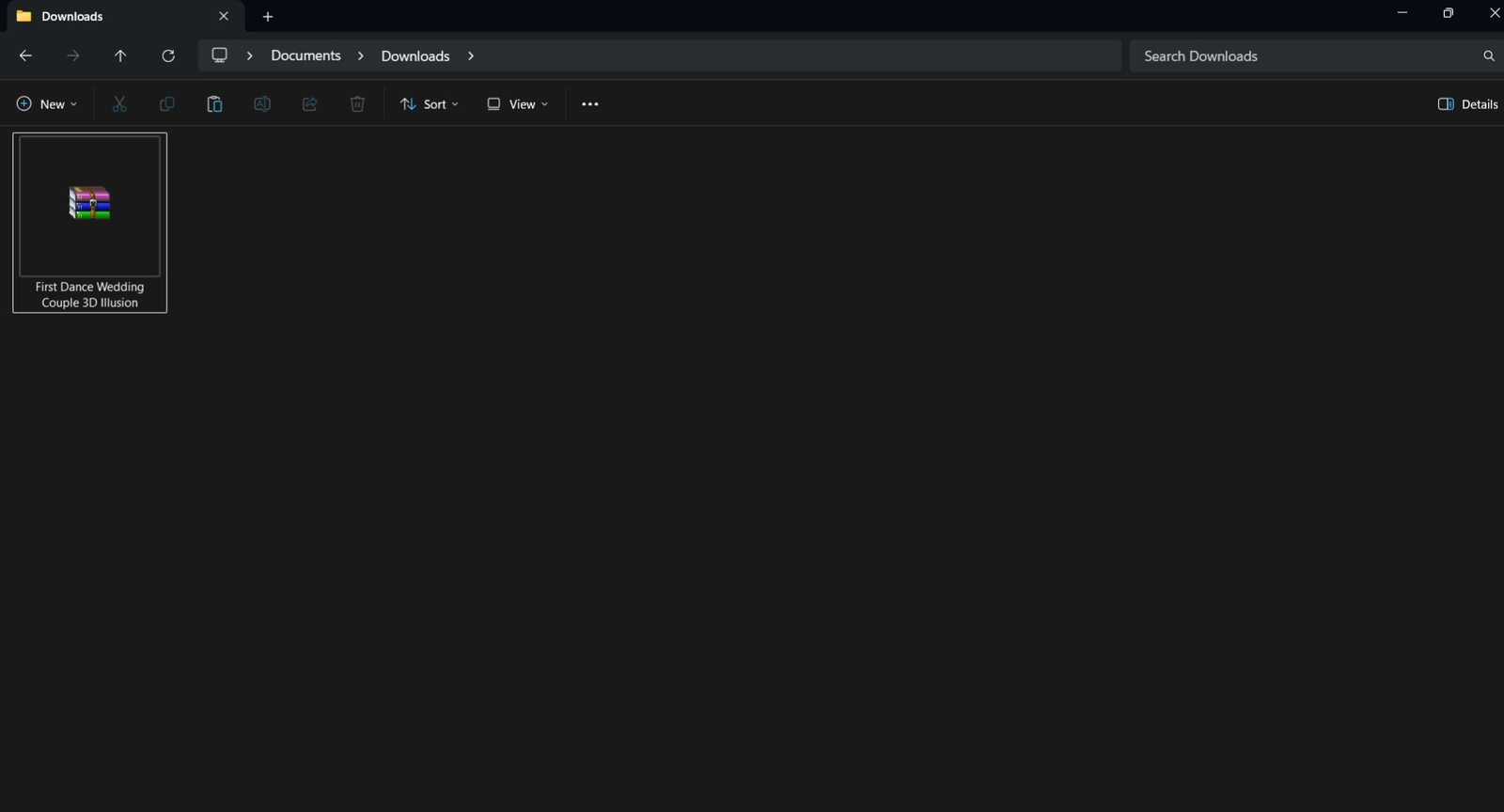
Find the file you downloaded
Go to your Downloads folder. The file you downloaded will usually look like a compressed file.
Right click the file
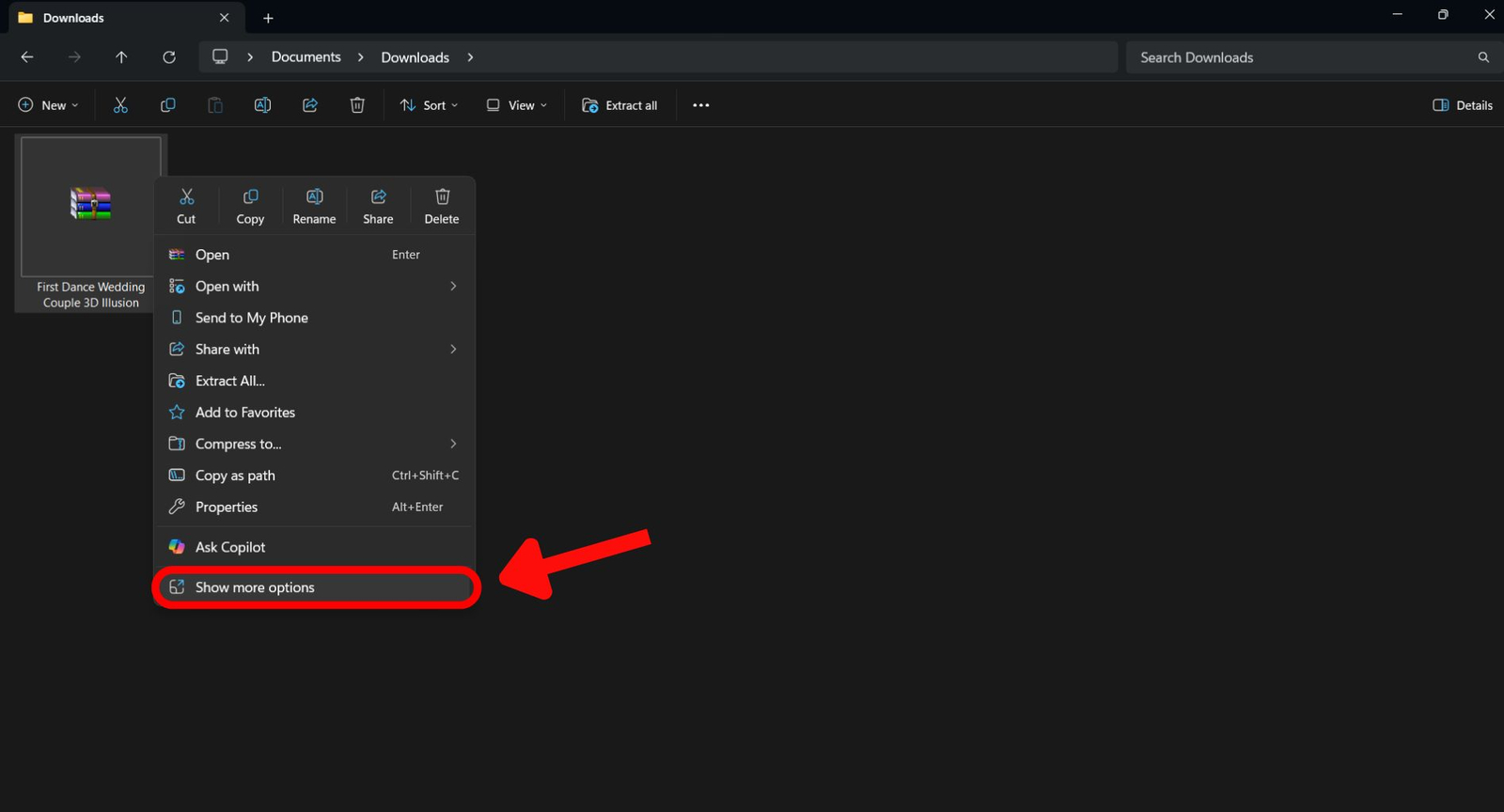
Right click the downloaded file. On Windows 11, you may need to click Show more options to see the extraction options.
Choose an extract option
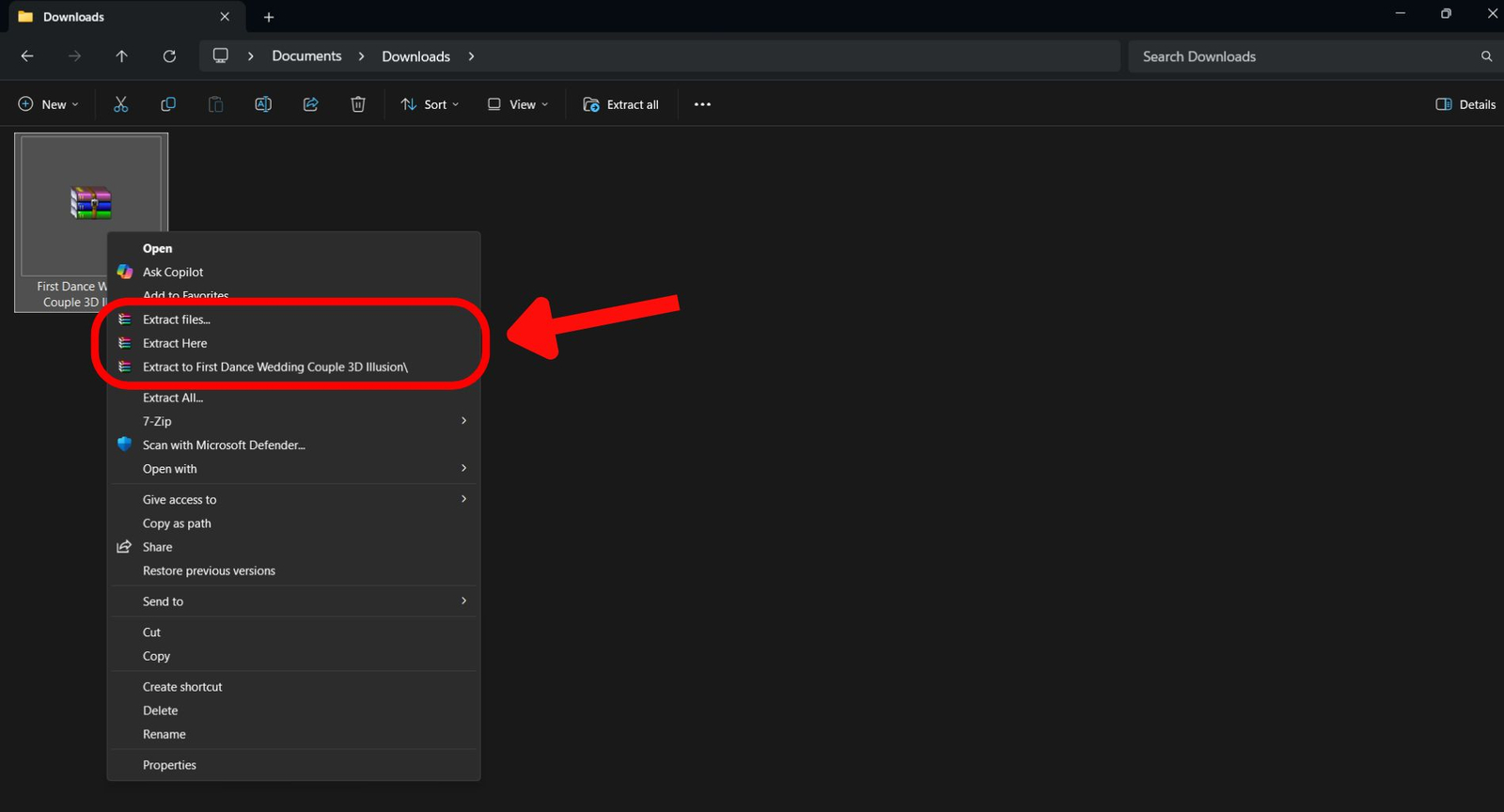
You may see a few extract options. Any of them can work, but the cleanest option is usually Extract to folder name. This creates a new folder and keeps everything organized.
Open the new folder
After extraction, you will see a new folder next to the compressed file. Open that folder. This is where your ready to engrave files are.
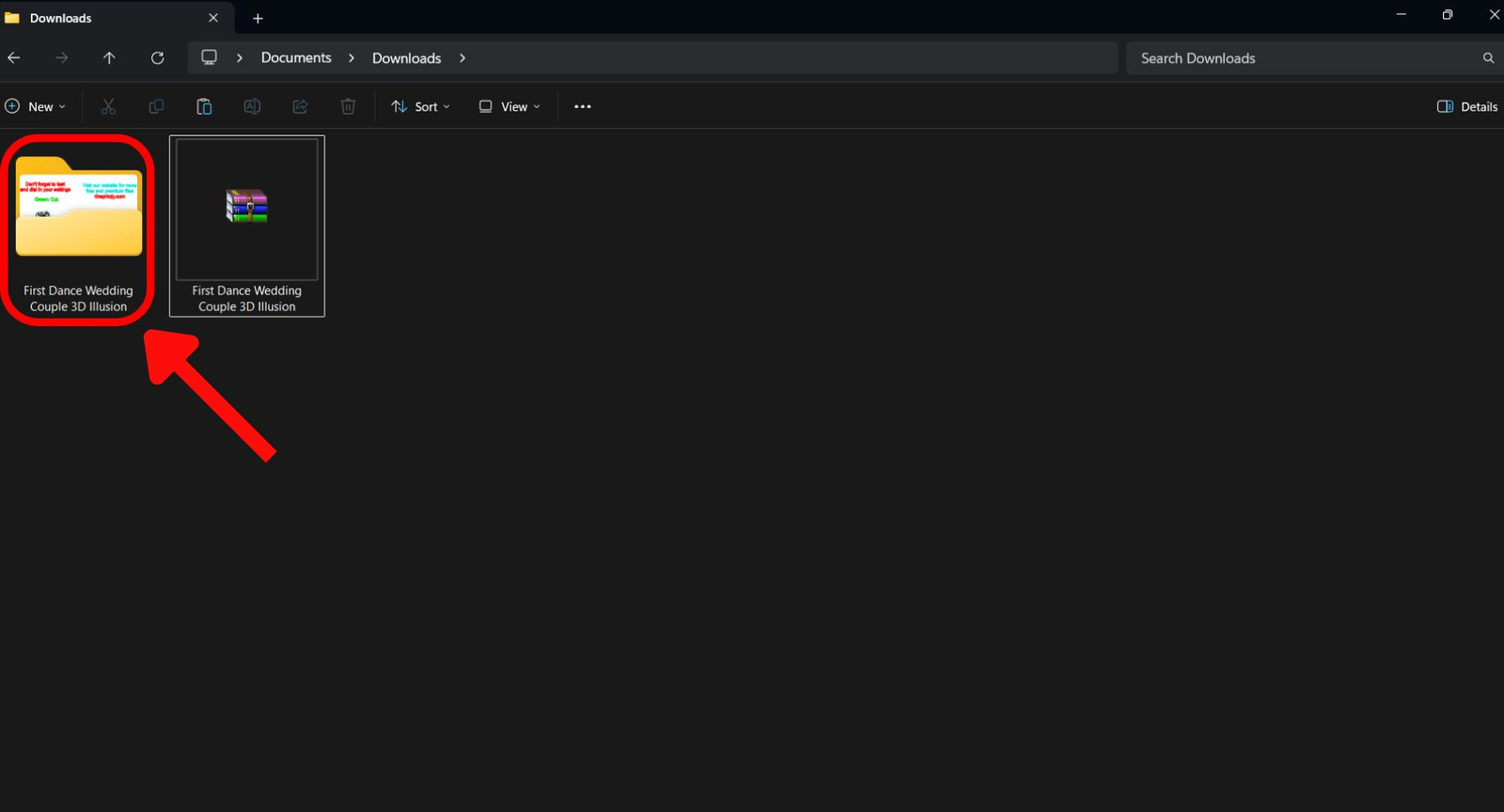
Choose the WWS file
Inside the extracted folder, find the WWS file. This is the WeCreat MakeIt file prepared for the software.

Open the design in WeCreat MakeIt
After the WWS file opens in WeCreat MakeIt, you should see the design on the canvas.

Check the cut layer
Open the Layer panel and select the outline or path layer. If you want to cut the outer shape, make sure that layer is set to Cut.

Check the engraving layer
Select the image layer. The main 3D illusion image should be set to Bitmap Engrave.

Which file should you use?
Graphiqly downloads usually include multiple formats. For WeCreat MakeIt, these are the main options to know.
Need to download your files again?
You can go back to your account downloads anytime and download your purchased files again.
Common Questions
Why can’t I open the downloaded file directly?
Because the downloaded file is compressed. Extract it first, then open the WWS file inside the folder.
Which file should I use for WeCreat MakeIt?
Use the WWS file first. It is the prepared WeCreat MakeIt file.
Can I use the SVG file instead?
Yes. If the WWS file does not open correctly, you can import the SVG file into WeCreat MakeIt as a backup option.
Can I use the PNG file?
Yes. Use the PNG file if you only want to engrave the main image without using the full prepared layout.
What if I do not want to cut the outside shape?
Select the cut layer and disable it, ignore it, or change the processing option depending on your project.
Do I need to change the settings?
The file is prepared, but you should still check material, power, speed, focus, and run a small test first.
Still need help?
If you are not sure which file to open or how to set the layers in WeCreat MakeIt, contact Graphiqly support. Include your order email and tell us which WeCreat machine you are using.
Support email: support@graphiqly.com